Getting started
A phantom is an email alias that forwards emails to your inbox. Give a website your phantom address instead of your real email address. You can still read and reply to its emails from your usual inbox.
This guide walks you through creating a phantom for a note-taking service called Skylark Notes, then using it in a signup form.
Before you start
You need a Mailphantom account with a verified email address. If you have not signed up yet, create an account using the inbox where you want to receive your emails, then follow the verification link in your email.
Create your first phantom
- Open Phantoms in Mailphantom and select Create Phantom.
- Enter
Skylark Notesin Name. Use the name of the website or service so you can recognise the phantom later. - Optionally add a URL. You can use this field to save the website's address when creating a phantom for a real service.
- Choose one of the available options under Domain. If your plan supports custom domains, you can add and verify your own in the Domains tab, then select it here.
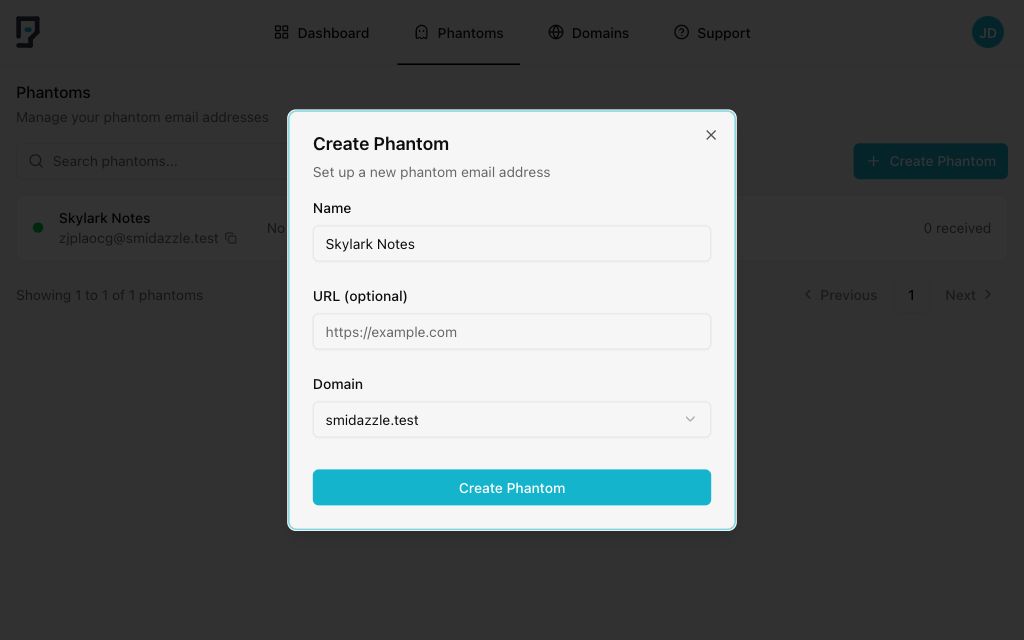
Mailphantom generates the phantom address for you. The name helps you find the phantom; it does not become the email address.
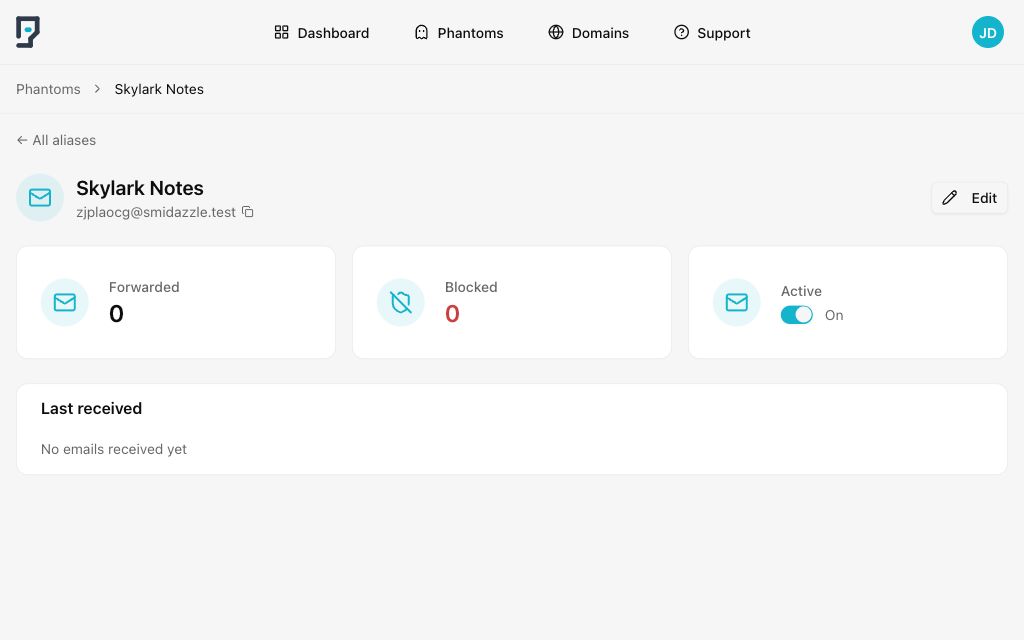
Select Create Phantom. Mailphantom opens the new phantom's detail page.
Copy the address
Select the email address beneath Skylark Notes to copy it. Your phantom will be different from the one in the example.
Check that Active is On. This means the phantom can forward incoming emails to the email address on your Mailphantom account.
Use it on a website
Open the website you want to sign up for and paste the copied phantom into its Email address field. Complete the rest of the form as usual.
Skylark Notes is an example signup form. On a real website, use your phantom wherever it asks for your email address, including when you log in again later.
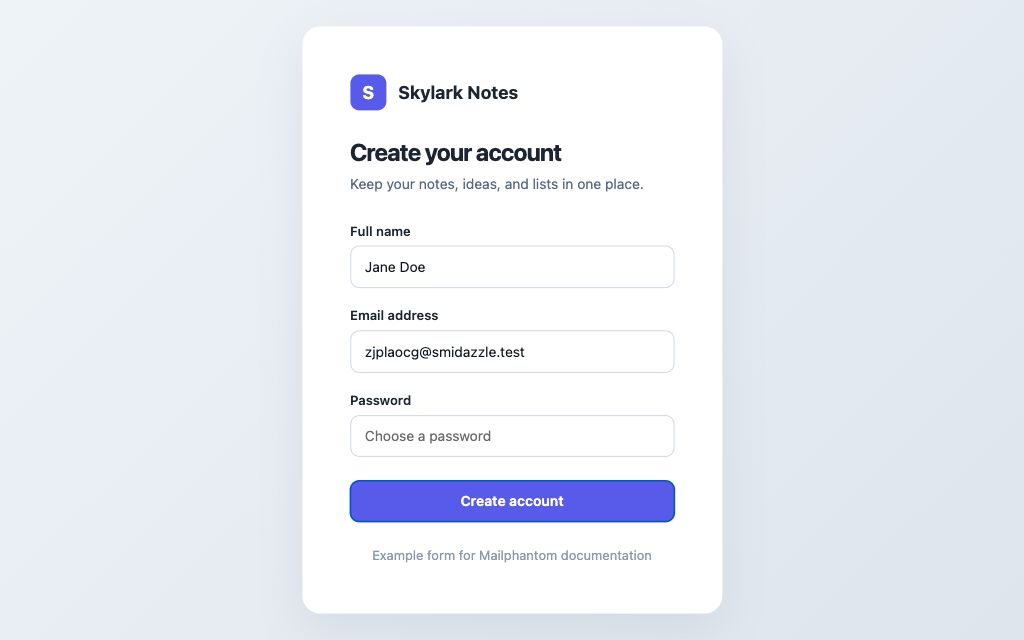
If the website sends a confirmation or verification email, it is forwarded to your usual inbox. Open it there and follow the link to finish signing up. There is no separate Mailphantom inbox that you need to check.
Keep control
Create a new phantom for the next service you use. Naming each one after its service makes it easier to find and manage later.
If you no longer want emails from a service, open its phantom and switch Active to Off. New emails to that address will be blocked. Switch it back On when you want to receive emails on this phantom address again.
Next steps
Read why it helps to use a phantom for every signup or return to the documentation overview.