Webhook delivery
Webhook delivery sends incoming emails to your application's HTTPS endpoint as JSON, so your code can process them programmatically.
A phantom is an email alias that forwards emails to your inbox by default. When you enable webhook delivery, Mailphantom forwards incoming emails to your application instead, via an HTTPS endpoint you specify where your application receives each email as a JSON object.
Each phantom uses either email forwarding or webhook delivery. Webhook delivery is one-way: it does not provide an API for sending or replying to emails.
Before you start
You need:
- A verified Mailphantom account with a Pro or Teams subscription.
- A phantom. Follow the getting started guide if you haven’t created one yet.
- An HTTPS endpoint that can receive POST requests from Mailphantom.
Enable webhook delivery
- Open Phantoms and select your phantom.
- Switch Webhook delivery to On to reveal the settings.
- Enter your endpoint in Webhook URL and select Save. This enables webhook delivery and creates a signing secret for your phantom.
- Expand Signing secret and select Copy signing secret.
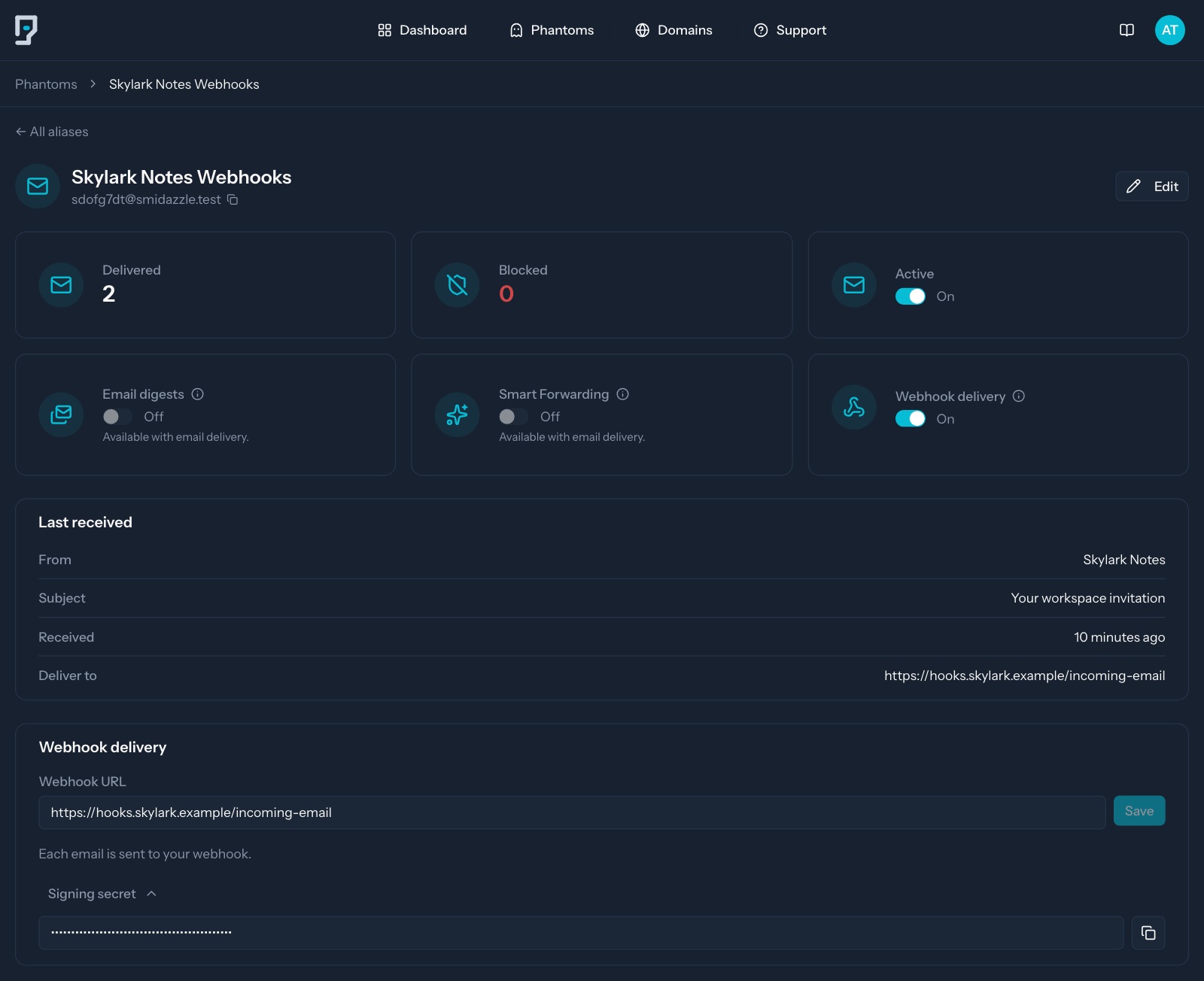
The signing secret lets your application verify that a request came from Mailphantom. Keep it private. You’ll use it in the JavaScript example below.
Webhook delivery ignores your email digest and Smart Forwarding settings. They stay saved and apply again when you switch back to email forwarding.
Receive and verify emails
Mailphantom sends a POST request to your webhook URL for each incoming email. The request includes an X-Mailphantom-Signature header, which your application can verify using your phantom's signing secret.
The signature covers the timestamp and the exact request body. Read the body as bytes and verify it before parsing the JSON. Parsing and recreating the JSON can change those bytes and cause verification to fail.
The header has this format:
X-Mailphantom-Signature: t=<unix timestamp>,v1=<hex signature>Mailphantom calculates the signature with HMAC-SHA256, using your signing secret as the key and timestamp + "." + rawBody as the input. The timestamp is in seconds and is generated for each delivery attempt.
Signature verification example
Pass the raw request body as a Buffer, the X-Mailphantom-Signature header, and your phantom's signing secret to this function. Use the secret exactly as supplied.
import { createHmac, timingSafeEqual } from 'node:crypto';

function verifySignature(rawBody, signature, secret, tolerance = 300) {
    const { t, v1 } = Object.fromEntries(
        signature.split(',').map((part) => part.split('=', 2)),
    );
    const expected = createHmac('sha256', secret)
        .update(`${t}.`)
        .update(rawBody)
        .digest('hex');
    const now = Math.floor(Date.now() / 1000);

    return (
        Math.abs(now - Number(t)) <= tolerance &&
        timingSafeEqual(Buffer.from(expected), Buffer.from(v1))
    );
}
The example uses Node.js's timingSafeEqual, which compares the two hashes in constant time. Only process the email when the function returns true. Your endpoint should reject requests when verification returns false or throws an error.
It also rejects timestamps more than five minutes old or ahead of the server's clock. We recommend this tolerance to limit replay attacks; it is a check in your application, not a Mailphantom setting. Keep your server's clock accurate. A request can still be repeated within that window, so signature verification alone does not prevent duplicate processing.
The webhook payload
The email's details are in data, and the receiving phantom's details are in phantom. The other top-level fields describe the delivery.
This example shows an email with a PDF attachment. The addresses, IDs, dates, and download URLs are illustrative; the URLs do not download real files.
{
    "id": "019a2ad4-1a00-7000-8000-000000000001",
    "event": "message.inbound",
    "timestamp": "2026-11-12T09:30:00+00:00",
    "phantom": {
        "name": "Skylark Notes",
        "email": "skylark@example.com",
        "url": "https://example.org"
    },
    "data": {
        "message_id": "019a2ad4-1a00-7000-8000-000000000002",
        "recipient": "skylark@example.com",
        "subaddress": null,
        "envelope": {
            "mail_from": "billing@example.org",
            "remote_ip": "203.0.113.45",
            "remote_hostname": "mail.example.org",
            "helo": "mail.example.org"
        },
        "from": {
            "email": "billing@example.org",
            "name": "Skylark Notes",
            "subaddress": null
        },
        "to": [
            {
                "email": "skylark@example.com",
                "name": null,
                "subaddress": null
            }
        ],
        "cc": [],
        "reply_to": "support@example.org",
        "subject": "Your Skylark Notes invoice",
        "date": "2026-11-12T09:29:59+00:00",
        "body": {
            "text": "Your invoice is attached.",
            "html": null
        },
        "headers": [
            {
                "name": "Message-ID",
                "value": "<invoice-4821@example.org>"
            }
        ],
        "is_spam": false,
        "attachments": [
            {
                "filename": "invoice.pdf",
                "content_type": "application/pdf",
                "size": 18342,
                "content_id": null,
                "url": "https://mailphantom.example/inbound/attachments/invoice%2F4821?expires=1795685400&signature=example-not-a-real-signature",
                "expires_at": "2026-11-26T09:30:00+00:00"
            }
        ],
        "raw": {
            "url": "https://mailphantom.example/inbound/raw/019a2ad4-1a00-7000-8000-000000000002?expires=1795685400&signature=example-not-a-real-signature",
            "expires_at": "2026-11-26T09:30:00+00:00"
        }
    }
}
Fields to know
| Field | Meaning |
|---|---|
id | The delivery ID. Retries of the same delivery keep this ID. |
event | message.inbound for an incoming email. |
timestamp | When the event was created, in ISO 8601 format. |
phantom.name | The name you gave the phantom. |
phantom.email | The phantom's email address. |
phantom.url | The website URL saved on the phantom, or null. |
data.message_id | The ID of the email itself. |
data.recipient | The phantom address that received the email. |
data.subaddress | The plus tag from the recipient address, without +, or null. |
data.envelope | SMTP sender (mail_from) and connection details (remote_ip, remote_hostname, and helo). |
data.from | The sender's address and name from the From header. The name can be null. |
data.to, data.cc | Addresses from the To and Cc headers. Either list can be empty. |
data.reply_to | The email's Reply-To address, or null. |
data.subject | The email's subject, or null. |
data.date | When the email was received, in ISO 8601 format. |
data.body.text, data.body.html | The plain-text and HTML versions of the email. Either can be null. |
data.headers | Additional email headers as name and value pairs. Can be empty ([]). |
data.is_spam | Whether the email was classified as spam. |
data.attachments | Attachment details. Can be empty ([]) or absent. |
data.raw | A download URL and expiry for the original .eml email. Can be absent. |
The data.to and data.cc lists can include addresses other than your phantom. Your phantom may be absent from both lists if the email arrived via Bcc or forwarding. Use data.recipient to identify the phantom that received it.
The phantom details reflect its settings at the time of each delivery attempt. If you change its name or website URL, retries include those updated values.
After verifying the signature, use the top-level id to avoid processing the same delivery twice. data.message_id identifies the email. The payload's timestamp describes the event; use the signature header's timestamp when checking whether a request is recent.
Download attachments and the original email
Each attachment includes a download url and an expires_at timestamp. The filename, size, and content_id fields can be null. Download the file before expires_at.
Use the complete URL exactly as supplied, including its path and query string. To download the first attachment from a verified payload:
const response = await fetch(payload.data.attachments[0].url);
const file = await response.arrayBuffer();
file contains the downloaded bytes as an ArrayBuffer. For the original .eml email, use payload.data.raw.url when available.
Check that the download succeeded before using the bytes. Save files you need to keep before their download URLs expire.
Real download URLs are bearer credentials: anyone with a complete, unexpired URL can download the file without signing in or providing an API key. Keep them private and out of public posts, application logs, error trackers, and analytics.
Sanitize email HTML before displaying it. Treat attachment filenames and file types as untrusted input when saving or processing files.
Acknowledgements and duplicate deliveries
Respond quickly with a 2xx status and handle longer tasks in the background. Mailphantom automatically retries deliveries that time out or fail with a temporary error.
A delivery can arrive more than once. After verifying the signature, use the top-level id to avoid processing the same delivery again. Return a 2xx response for deliveries you have already accepted.
Retries and delivery logs
Requests time out after 30 seconds. Mailphantom does not follow redirects.
| Result | What happens |
|---|---|
Any 2xx response | Delivery succeeds. |
Connection failure, timeout, 408, 429, or 5xx | Mailphantom retries. |
| Other HTTP responses, including redirects | Delivery fails without retrying. |
Mailphantom makes up to 12 attempts, including the first delivery attempt. The scheduled delays between attempts are 1, 2, 5, 10, 10, 15, and 30 minutes, then 1, 2, 4, and 6 hours.
When delivery fails permanently, Mailphantom emails the phantom's owner with a link to the delivery log. Individual retries do not send notifications.
View delivery logs
Open your phantom and find Webhook Deliveries. Each delivery has one row, updated as attempts are made. The table shows Subject, Received, Status, HTTP, Attempts, Error, and Next retry.
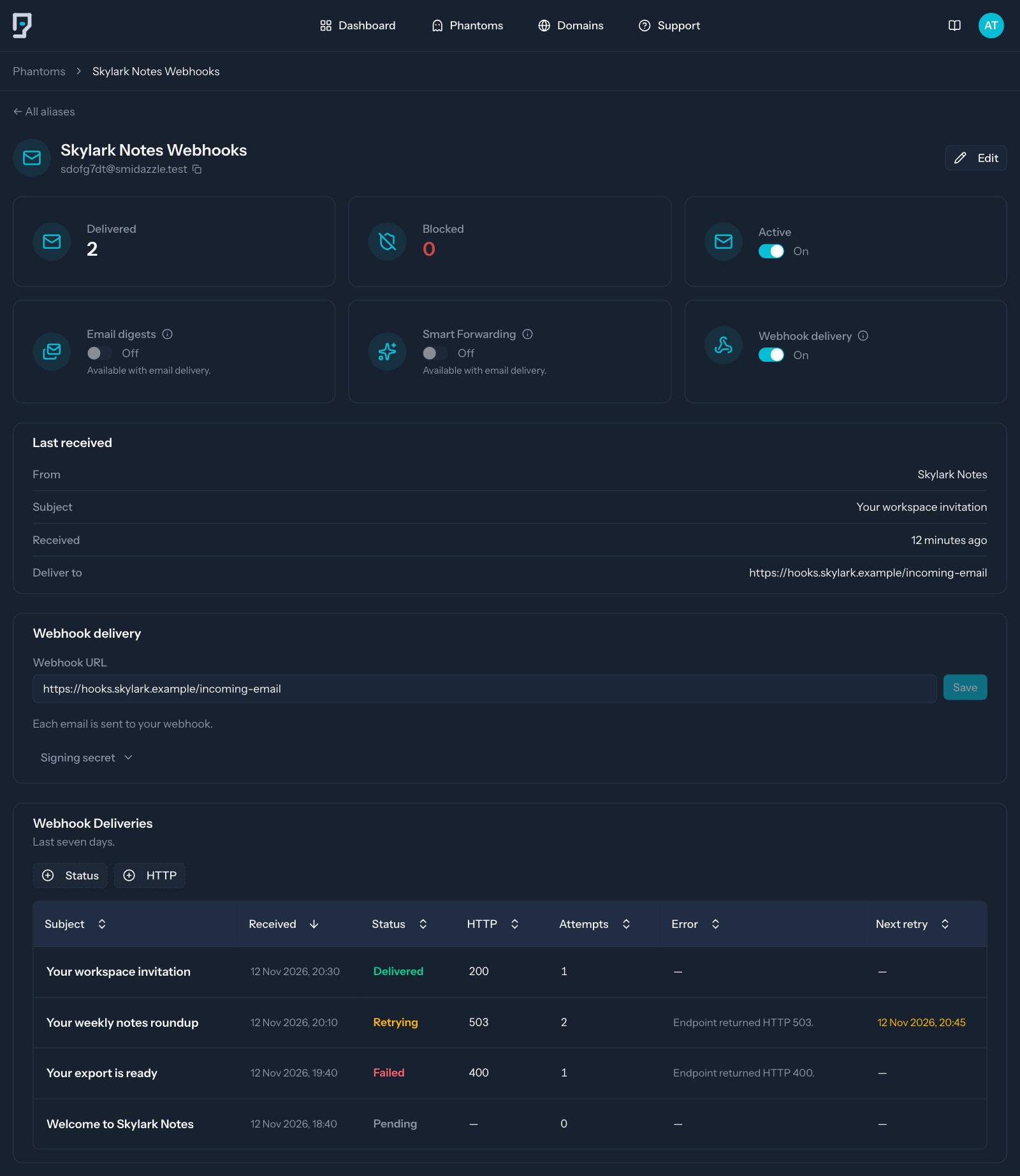
Logs are kept for seven days from the first attempt, including successful and failed deliveries. Email bodies and attachments are not included in the log.
Test your integration
Send an email to your phantom, then check Webhook Deliveries for a successful delivery. Confirm your application received the email and can download its attachments.
Also check that your application rejects requests with invalid signatures.
Troubleshooting
| Problem | What to check |
|---|---|
| Signature verification fails | Use the exact raw request body and your phantom’s signing secret. Check your server’s clock. |
| No delivery arrives | Check that your phantom is active, webhook delivery is enabled, and your endpoint is reachable. |
| Delivery times out | Return a 2xx response quickly and handle longer tasks in the background. |
| Your endpoint returns a redirect | Set Webhook URL to the final HTTPS URL. |
| An attachment won’t download | Use the complete download URL and check its expires_at timestamp. |